I want to have a button with dual functionality, so it performs a different task if single clicked vs double clicked. This is 2 different tasks, not just prevent double clicking. The most basic example would be to display the message “Single” if clicked once or “Double” if clicked twice.
Unless I’m missing something very obvious, this was harder than I originally thought.
I came up with this solution, using a timer, I can disregard the first click if a second click comes in within one second.
The info(“MouseDown”) is true() as soon as the procedure is triggered. Your example always displays “Double Click” even if single clicked.
EDIT… @dave Your example works if the procedure is triggered on Click on Release. I was trying your code with a rectangle object, which triggers the procedure on mouse down, not mouse up.
In that case you could precede that code with a loop that runs while info(“mousedown”). That way, the second loop wouldn’t start until after you released the mouse.
There really is no such thing as a “double click”. There is only two single clicks, closely spaced. My point is that unless you can predict the future, there is no way to tell whether a single click is going to be followed by another click in the near future.
Standare UI behavior is to use a double click only as a follow up to a single click, not to do somethine completely different. Most typically, a single click selects an item, then a double click performs an action on the selected item. For example in the Finder, clicking once will select a document or application. The second click (if it follows soon after) will open the selected item. You’ll find this is almost always (maybe always always) the way double clicking is used. I suspect if I did some google searching I could find an Apple human interface guideline that says this is the suggested behavior for double clicking, but I’ll leave that as an exercise for the reader.
Notice that when you design your interface this way, you selecting the item on every click. Then once you’ve selected the item, you can check whether it’s a double click, and if so, open the item. But you don’t need a timer or delay, because the selection happens no matter what.
If you try to do something different on single vs. double click, that means you are always delaying on every click, because you can’t tell if it is a single or double click until after the delay. This is true whether you use a timer or a loop like Dave’s suggestion. Using a loop has the additional disadvantage of locking up the UI until the loop is complete, so for example you couldn’t quickly click on something else. You may decide this is ok for your internal application, but in my opinion this would definitely be a no-no for any publicly shipped app.
I would recommend using some other signal to trigger different actions - for example right clicking, pressing the shift or option keys, or using a pop-up menu. It’s best to reserve double clicking for situations where the second click is a follow up to the first click.
Thank you Jim! I understand that the approach I’m taking here isn’t the standard one.
That said, in my many years developing Panorama applications for our company, I’ve found that “standard” doesn’t always translate into the best user experience. My priority is always to match the application’s behavior to how our users naturally work. In this case, both observation and feedback show that single-click and double-click actions are the most intuitive and efficient for everyone using this tool.
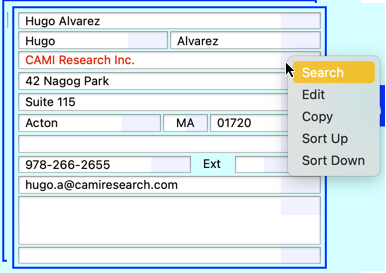
Here’s what I’ve implemented: next to each Text Editor Object in my forms, there’s a semi-transparent button.
Single click: instantly opens the Search dialog for the associated TEO field.
Double click: opens a popup menu with options for Search, Copy, Edit, Sort Up, and Sort Down.
Because searching is the most common action—about 90% of the time—the single-click shortcut eliminates extra steps and speeds up workflow. Users can still click directly into the TEO to edit field contents, so no existing functionality is lost.
Of course, the delay waiting for a second click is something to considered, and that was the main reason for my question, how to speed it up. Dave’s solution works as needed, and my timer suggestion would be great if fractional seconds could be used for the trigger.
But it’s not instant. Every time, it has to wait enough time to determine whether or not this is a double click.
You’ve already included Search in the pop-up menu. Why not just activate that with a single click, and let them select Search from the menu. Since it’s the first item, it will be very fast.
If you really don’t like that, I would suggest using two buttons. You’ve got plenty of space for that. Instead of semi-transparent, why not use Text Display objects with Font Awesome icons.
By the way, did you know that you can edit the blueprint of a text display object to inset the text, to leave room for the button(s)? Maybe you’re already doing that. If you aren’t, just right click on a Text Display object and look at the blueprint, it should be obvious how to do it.
I’m probably wasting my breath here, so I guess I’ll shut up now.
Please don’t, your comments are greatly appreciated!
You are persuading me to use right click to show the menu and single click for immediate search, instead of double clicking.
Two buttons doesn’t always work. There are fields too small for this and I want to ensure consistency.
I had use awesome icons before, specifically a magnifying glass. Using a semi-transparent button allows me to use the entire field length to display actual data, without having to modify my forms for more width. Also the rectangle semi-transparent button offers more clicking area than a squared sized awesome icon, helping with clicking efficiency.
These are the reasons for my madness, and again, I’m glad that Panorama offers this level of customization.